Assigning DOM Elements to a Plugin

After writing hundreds of jQuery plugins, I found this pattern for assigning DOM elements to a plugin using data attributes. Here goes:

Markup

In the markup, add data attributes that follow this pattern: data-plugin-elem-mypluginname

<div class="carousel-container">
	<div class="carousel-wrap" data-plugin-elem-mypluginname="carouselWrap">
		<div class="carousel" data-plugin-elem-mypluginname="carousel">
			<div class="carouselTile" data-plugin-elem-mypluginname="carouselTile"></div>
			<div class="carouselTile" data-plugin-elem-mypluginname="carouselTile"></div>
			<div class="carouselTile" data-plugin-elem-mypluginname="carouselTile"></div>
			<div class="carouselTile" data-plugin-elem-mypluginname="carouselTile"></div>
			<div class="carouselTile" data-plugin-elem-mypluginname="carouselTile"></div>
			<div class="carouselTile" data-plugin-elem-mypluginname="carouselTile"></div>
		</div>
	</div>

	<div class="controls">
		<a class="prev" href="#todo-prev" data-direction="prev" data-plugin-elem-mypluginname="controlPrev">
			&laquo;Prev
		</a>

		<a class="next" href="#todo-next" data-direction="next" data-plugin-elem-mypluginname="controlNext">
			&raquo;Next
		</a>
	</div>
</div>

Having the assignment in a data attribute accomplishes two things:

  1. The attribute name includes the plugin name so the markup clearly defines the association between the element and the plugin
  2. The classes are left to be used only by CSS as they were intended. If you’re working with a web designer, they can rename and reorganize the CSS classes as they see fit without disabling your plugin’s functionality and throwing Javascript errors.

Javascript Plugin

In the plugin, pull all the elements into one object for easy access:

$.fn.myPluginName = function( options ) {

	var getPluginElements = function() {

		var $pluginEls 	= _$elem.find('[data-plugin-elem-mypluginname]');
		var $els 		= {};

		$.each($pluginEls, function(i, el) {

			var $el 	= $(el);
			var elKey 	= $el.data('plugin-elem-mypluginname');

			if (typeof $els[elKey] == 'object') {
				$els[elKey] 	= $els[elKey].add($el);
			} else {
				$els[elKey] 	= $el;
			}
		});

		return $els;
	};

	var _$elem 	= $(this);
	var _$els 	= getPluginElements();

	// Your code goes here!
};

Then you can access the object properties directly as a jQuery element:

_$els.controlPrev.click();

_$els.carousel.animate(
	{ 'left': -1000 },
	{
		'duration': 1500,
		'easing': 'easeInOutQuint',
		'queue': false
	}
);

$.each(_$els.carouselTile, function(i, el) {
	// Your code goes here!
});
Remove jQuery Plugin Instances

Here’s how to remove all instances of all plugins from an element if the plugin does not include a destroy method:

$.removeData($element.get(0));

This will not remove the bound events. You have to do that separately.
If the plugin you’re trying to remove has namespaced events, you’re in luck:

// Remove namespaced events added using .on()
$element.off('pluginNamespace');
// Remove namespaced events added using .bind()
$element.unbind('.pluginNamespace');

If not, you can examine all of the events attached to an element:

console.log(
	'$element events:', 
	$._data($element.get(0), 'events')
);

Here’s all wrapped up in a handy function:

var destroyCrappyPlugin = function($elem, eventNamespace) {
	var isInstantiated 	= !! $.data($elem.get(0));

	if (isInstantiated) {
		$.removeData($elem.get(0));
		$elem.off(eventNamespace);
		$elem.unbind('.' + eventNamespace);
	}
};

Flip an Element

CSS class to flip an element horizontally:

.flip-horizontal {
	-moz-transform: scaleX(-1);
	-o-transform: scaleX(-1);
	-webkit-transform: scaleX(-1);
	transform: scaleX(-1);
	filter: FlipH;
	-ms-filter: "FlipH";
}

Vertically:

.flip-vertical {
	-moz-transform: scaleY(-1);
	-o-transform: scaleY(-1);
	-webkit-transform: scaleY(-1);
	transform: scaleY(-1);
	filter: FlipV;
	-ms-filter: "FlipV";
}

Links

Stack Overflow

Find if a Child Element Has Focus

var hasFocus = !! ($elem.find(':focus').length > 0);

Detecting child focus with focusout jQuery event, setTimeout is required to wait for next element in the DOM to receive focus:

$focusElem.on('focusout', function() {
	var $elem = $(this);
	setTimeout(function() {
		var hasFocus = !! ($elem.find(':focus').length > 0);
		if (! hasFocus) {
			// Handle blur here.
		}
	}, 10);
});

Detecting Keyboard Click Event

When handling a click event, how do you tell if it’s from keyboard enter key or mouse click? Use a keydown event to set up detection before the click event is called:

var ENTER_KEY = 13;
var isKeyEvent = false;

$('.my-elem')
	.on('keydown', myElem_Key)
	.on('click', myElem_Click)
;

var myElem_Key = function(e) {
	var key = e.keyCode || e.which;
	if (key == ENTER_KEY) {
		isKeyEvent = true;
	}
}

var myElem_Click = function(e) {
	if (isKeyEvent) {
		// Handle key event click.
		isKeyEvent = false;
	}
}

The key event can be tied to multiple elements and the callback used as a pass-through for detection.

Pixelation on Canvas

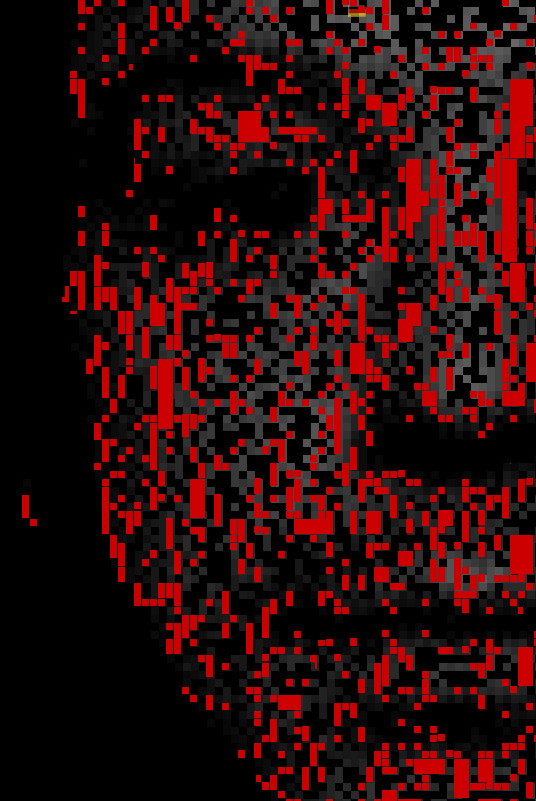
I’ve been working on an animation for OUBEY.com homepage. The main image on the homepage is OUBEY’s face pixelated in grayscale. I wanted to try to isolate the position and size of random pixels and create an object to match the image. This rendered object would lie exactly on top of the pixel contained in the image and animate on screen. This was accomplished by creating a canvas element of the image and using the canvasContext.getImageData method available in HTML5. Calling this method returns an array with RGBA pixel information:

  • px.data[ 0 ] is Red.
  • px.data[ 1 ] is Green.
  • px.data[ 2 ] is Blue.
  • px.data[ 3 ] is Alpha.

By traversing this array in steps of 4, I was able to choose random pixels from the image and extrapolate x, y, width, height:

  • By moving left one pixel until the RGB value changed, I found the left edge.
  • By moving to the right one pixel at a time until the RGB value changed, right edge.
  • Move up to find top edge.
  • Move down to find bottom edge.

Here’s a screenshot of the result, running 10,000 iterations. The objects created are red for visual contrast:

OUBEY.com
HTML5 Rocks: Integrating Canvas into your Web App
HTML5 Rocks: Image Filters with Canvas